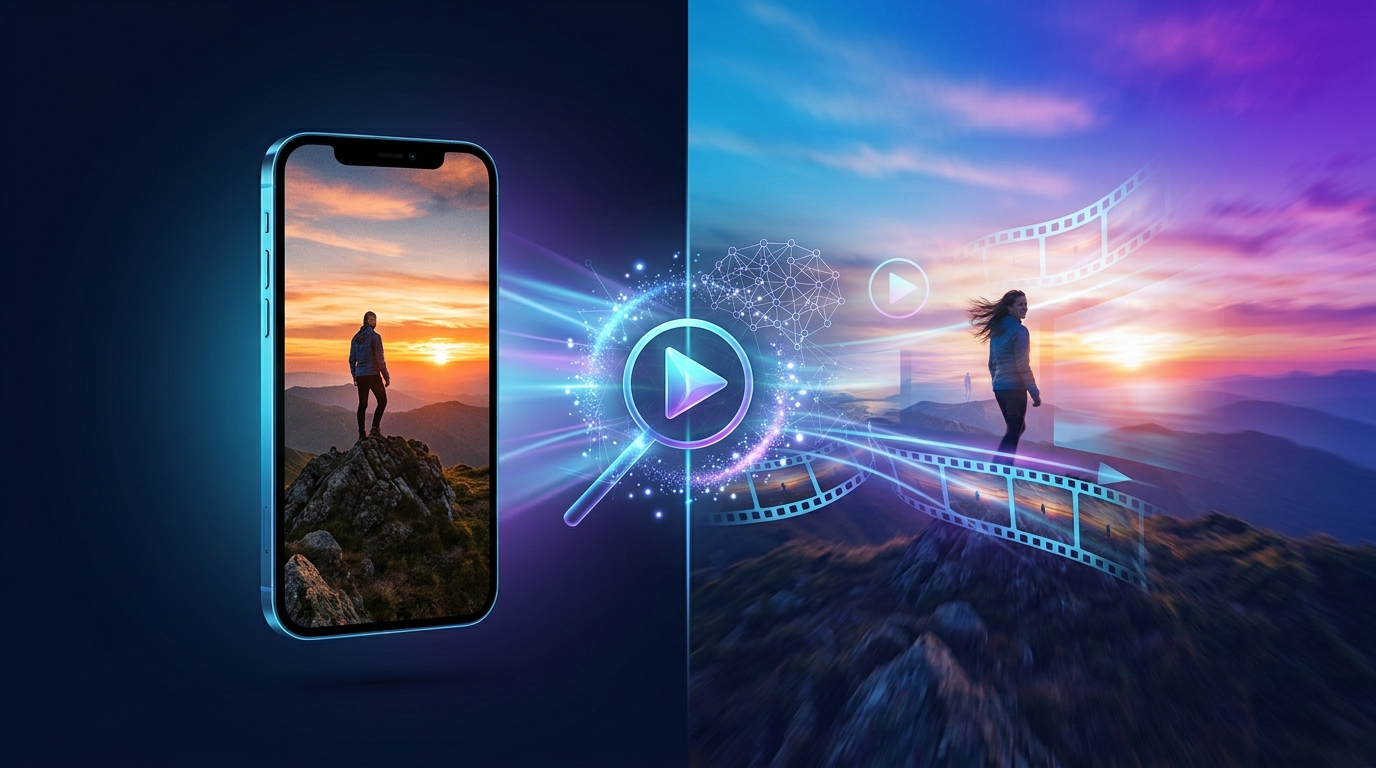
Turning a simple photo into a cinematic video no longer requires any editing skills. With photo to video AI tools, all you need to do is upload an image the AI handles the motion, camera movement, and transitions for you, with no timelines, no keyframes, and no complicated software.
In this guide, we'll walk through exactly how to turn a photo into a video using AI, the best use cases for it, and tips to get a professional-looking result every time.
What Is Photo to Video AI?
Photo to video AI is a technology that analyzes a static image and generates realistic motion from it things like camera pans, zooms, parallax depth, or full scene animation. These tools rely on diffusion-based AI models (like Veo, Kling, and Seedance) that understand the pixels in a photo and animate them frame by frame, producing a smooth, cinematic video as the final output.
What used to take professional video editors months to produce can now be done with an AI photo to video generator in a matter of seconds.
Why Convert a Photo Into an AI Video?
Social media content - engaging visuals for Instagram Reels, TikTok, and YouTube Shorts
Marketing and ads - turn static product photos into dynamic promotional videos
Bringing memories to life - animate old family photos into living memories
E-commerce - turn static product images into motion showcases
Content creation - produce professional-looking video content without a camera or a shoot
Steps to Convert a Photo Into an AI Video
Step 1: Choose a Reliable AI Photo to Video Tool
The first and most important step is picking the right tool. A good AI image to video generator should offer high-resolution output, multiple AI models, and customization options. TextVidai is a strong option here it's a professional AI video generator that can create videos from text, images, or audio, and supports several leading AI video models, including Veo 3.1 and Kling 2.6.
Step 2: Upload Your Photo
Open the tool and select your photo. For the best results:
Use a high-resolution image (1080p minimum is recommended)
Choose a clear, well-lit photo
Photos with simple backgrounds tend to produce more natural motion
On TextVidai's Generate page, you can simply drag and drop your image and the process starts instantly.
Step 3: Write a Motion Prompt (Optional but Recommended)
Most advanced tools let you add a text prompt describing the kind of movement you want like "slow camera zoom in" or "gentle wind blowing through hair." This step is what turns a generic output into a genuinely cinematic one.
Step 4: Select an AI Model
Every AI model has its own style some are better at photorealistic motion, others excel at artistic or stylized animation. Multi-model platforms like TextVidai automatically route to the best model for your content type, so you get an optimal result every time.
Step 5: Generate and Preview
After clicking generate, the AI converts your photo into a video within seconds. Most tools support output ranging from 720p all the way up to 4K.
Step 6: Download and Share
Download the final video in HD or 4K quality watermark-free on paid plans and use it directly for social media, ads, or presentations.
Tips for the Best Photo to Video AI Results
Use a high-quality input photo - the better the source image, the better the output
Choose a simple, clear subject - cluttered images make it harder for AI to generate clean motion
Write a specific motion prompt - detailed, descriptive prompts produce better results
Try multiple models - every model produces a different output, so test a few to find the best fit
Prefer 4K output - high resolution matters for any professional use case
What Is Photo to Video AI Best Used For?
An AI photo to video generator like TextVidai delivers cinematic motion in HD or 4K quality equally useful for content creators, marketers, and agencies. Whether you want to turn a single product photo into a promotional clip or animate an old memory, AI-powered photo to video conversion makes the process fast, affordable, and accessible to everyone.
If you'd rather create a video from a text description instead of a photo, the same platform's text to video generator lets you do exactly that just write a description and the AI generates the full video.
Photo to Video AI vs. Traditional Video Editing
Conclusion
Converting a photo into an AI video has become a genuine game-changer for both creators and businesses. By choosing the right tool such as TextVidai, which brings several leading AI video models together anyone can turn a static image into a professional, cinematic video in just seconds.
Ready to turn your first photo into an AI video? Get started on TextVidai and see for yourself how quickly AI can bring your photo to life.
FAQs
Q1. Is photo to video AI free?
Most platforms offer a limited free trial, while full features and watermark-free downloads are available on paid plans. You can compare all plans on TextVidai's pricing page.
Q2. Which AI photo to video generator is the best?
It depends on your needs. Multi-model platforms like TextVidai which offer models like Sora 2, Veo 3.1, and Kling 2.6 give you both flexibility and quality.
Q3. Can I convert any photo into a video?
Yes, but high-resolution, clear photos produce better and more natural-looking results.
Q4. How long does photo to video AI take?
Most tools complete the process in anywhere from a few seconds to 1-2 minutes, depending on the photo's complexity and the AI model selected.