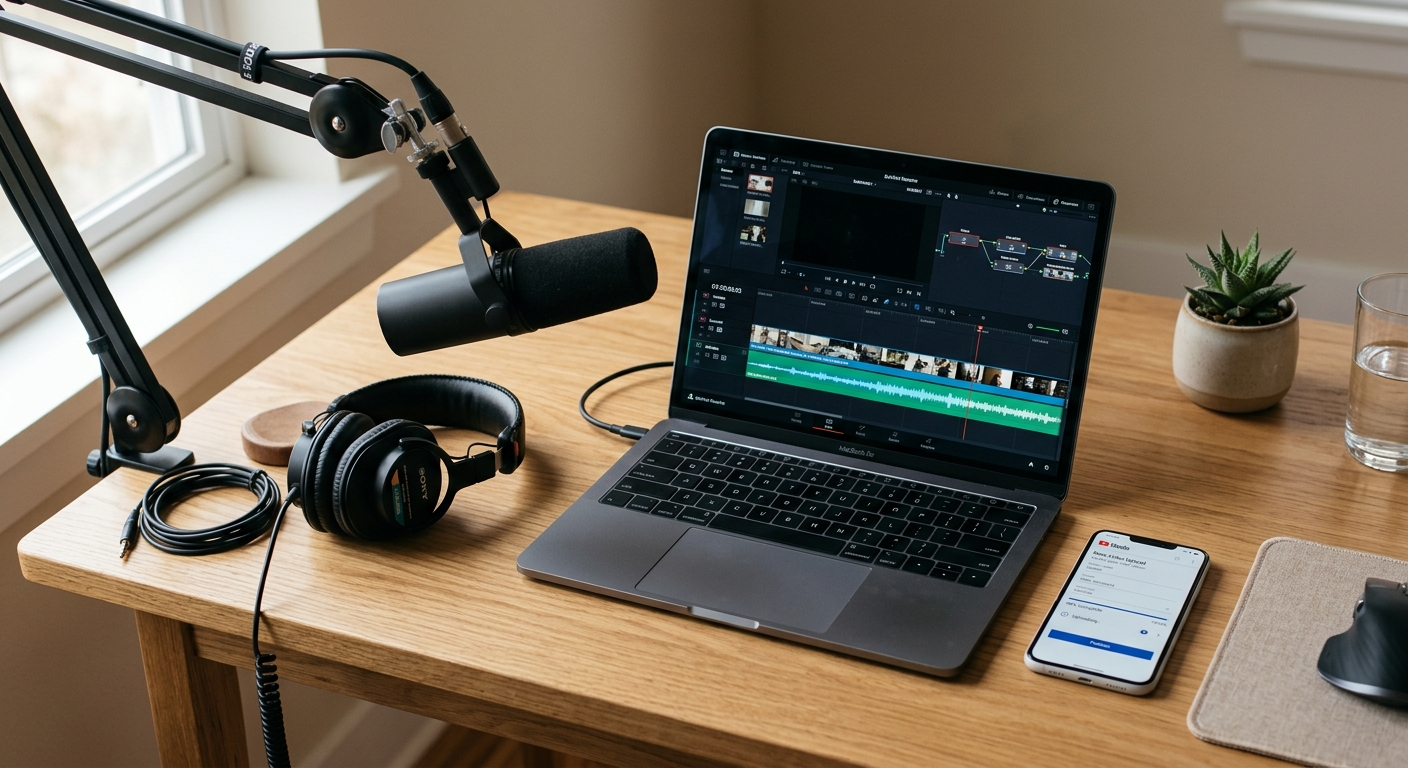
If you have ever tried uploading a podcast episode, a voiceover, or a music track to YouTube, you already know the problem: most platforms simply do not accept audio-only files. They need a video. This is exactly why so many creators, podcasters, and marketers now rely on an audio to video generator to turn their sound files into publish-ready videos in just a few clicks.
In this guide, we will walk through what these tools actually do, why they have become so popular, how you can convert your own audio into video content automatically, and which mistakes to avoid so your final result actually looks professional.
Why Convert Audio Into a Video in the First Place?
Audio content is incredibly valuable, but it is also limited in where it can go. Platforms like YouTube, Instagram, TikTok, and Facebook are built around video, not standalone sound files. If your content only exists as an MP3 or WAV file, you are cutting yourself off from some of the biggest audiences online.
Turning audio into video solves several problems at once:
It makes your content shareable on video-first platforms.
It gives listeners something to look at, which keeps them engaged longer.
It opens the door to captions, which improve accessibility and watch time.
It helps podcasts and audiobooks get discovered through YouTube search.
This is where automation helps. Manually editing a video around an audio track can take hours, while an automated tool can do it in minutes.
Who Actually Needs This?
The reasons for converting audio into video differ depending on what you create.
Podcasters convert episodes into video so their show can appear in YouTube search results.
Musicians use it to release tracks on platforms that do not support audio-only uploads.
Course creators turn narrated lessons into video lectures that are easier for students to find.
Marketers repurpose interviews or webinar audio into shareable clips for social media.
Authors convert audiobook samples into video previews to promote their work.
If your content lives in audio form but your audience lives on video platforms, automatic conversion is the bridge between the two.
What Is an Audio to Video Generator?
An audio to video generator is a tool that takes an audio file as input and produces a finished video file as output usually by pairing the sound with a static image, animated waveform, background clip, or auto-generated visuals. Instead of opening a traditional video editor and manually syncing audio to a timeline, AI-powered generators handle the entire process for you.
Most tools in this category work in a similar way:
You upload your audio file.
You choose a visual style - a background image, a moving waveform, subtitles, or a template.
The tool automatically renders a video file that matches the length of your audio.
You download the finished video, ready to upload anywhere.
Some more advanced generators go a step further and use AI to create relevant visuals, generate captions from speech, or even build short clips designed for social media.
Step-by-Step: How to Convert Audio Into a Video Automatically
While every tool looks a little different, the general workflow for automatic conversion follows the same core steps.
1. Prepare Your Audio File
Before uploading anything, make sure your audio is clean and clearly recorded. Background noise, low volume, or clipping will carry over into the final video, so it helps to do a basic clean-up pass first if your recording software allows it.
2. Choose Your Tool
There are several types of tools that can handle this job:
Online audio to video converters - browser-based tools where you upload a file and get a finished video without installing anything.
AI-powered video generators - tools that also add auto-captions, visuals, or even AI avatars.
Desktop editing software - more manual, but useful if you want full creative control.
For most creators, an online generator is the fastest option because there is no software to install and no editing skills required.
3. Add Visuals Automatically
This is the step that used to take the most time. Automated tools solve it by offering:
A static background image or your channel logo
An animated waveform that moves with the audio
Simple background videos or looping animations
You simply pick a style, and the tool builds the visual layer around your audio automatically.
4. Let the Tool Render the Video
Once your settings are chosen, the generator processes everything in the background — syncing timing, adding visuals, and rendering the final file. Depending on the length of your audio, this can take anywhere from a few seconds to a few minutes.
5. Export and Publish
After rendering, you will get a standard video file (usually MP4) that is ready to upload to YouTube, Instagram, TikTok, or any other platform.
Tips for Better Results
A few small adjustments can make a big difference in how professional your final video looks:
Use captions whenever possible. Many viewers watch with the sound off, so auto-generated subtitles significantly increase watch time.
Match your visuals to your content. A calm background suits a meditation podcast; bold colors and motion suit high-energy content.
Keep branding consistent. If you are turning a podcast into video, use the same intro, colors, and logo every time so viewers recognize your channel instantly.
Check audio-visual sync before publishing. Even automated tools can occasionally misalign audio and visuals on longer files, so a quick preview is worth the extra minute.
If you want inspiration first, you can browse real AI-generated videos to see different styles in action before picking your own.
Common Mistakes to Avoid
Automation removes most of the technical work, but a few mistakes still show up often enough to mention.
Uploading low-quality audio. No visual effect can fix a recording that is muffled or full of background noise. Start with the cleanest file you have.
Ignoring platform limits. Some platforms restrict video length or file size, so check requirements before rendering a long episode.
Skipping a final preview. A quick scrub through the finished video before publishing can catch sync issues or cut-off captions.
Using the same static image every time. Simple movement, like an animated waveform, tends to hold attention longer than a still image.
Forgetting accessibility. Auto-captions are often the reason a video gets watched all the way through, especially on mobile where sound is frequently off by default.
Is Automatic Conversion as Good as Manual Editing?
For most everyday use cases, yes. Automated generators handle the repetitive parts of video creation: syncing timing, adding a background, generating captions, and exporting in the right format. For a podcast episode, audiobook sample, or voiceover, this is typically all you need.
Manual editing still has its place if you want highly customized visuals, multiple camera angles, or a heavily branded look with unique transitions. But for anyone who simply needs audio to exist as video, quickly and without a steep learning curve, automatic tools get the job done in a fraction of the time. If cost is a factor in your decision, it's worth checking the available pricing plans before committing to any tool.
Final Thoughts
Turning sound into a finished video no longer requires editing experience or expensive software. With the right audio to video generator, the entire process from uploading your file to exporting a polished video can be handled automatically in just a few steps. Whether you are repurposing a podcast, publishing a voiceover, or sharing music online, automated conversion tools make it easy to reach audiences on platforms that were built for video first.