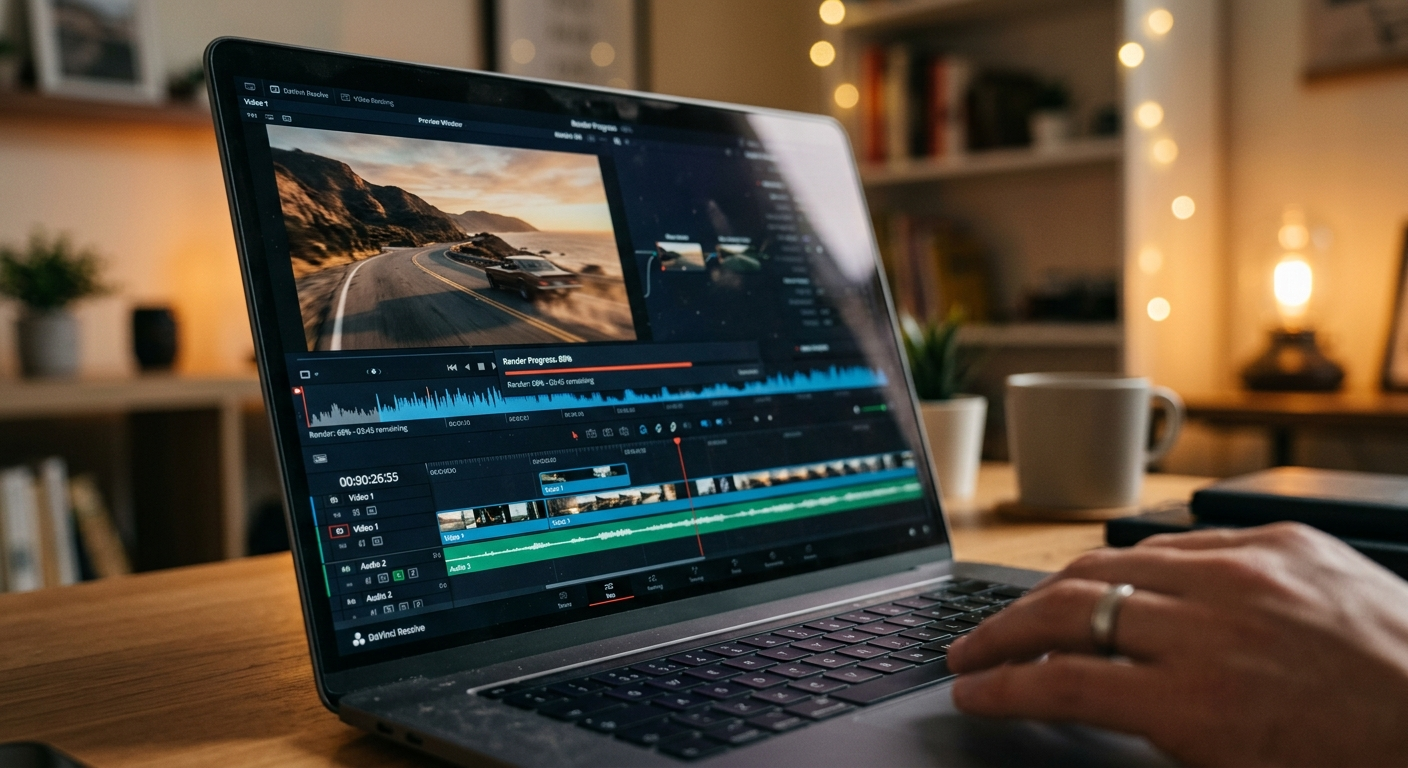
Not long ago, turning an idea into a finished video meant hiring editors, recording voiceovers, and spending hours in complicated software. Today, text-to-video AI has flipped that process on its head. You type a few sentences, click a button, and a polished clip appears, often in less than a minute.
If you have ever wondered how to create a video from text, this step-by-step guide walks you through the entire workflow. Whether you are a marketer building social ads, a teacher making lessons, or a creator scaling content, an AI video generator can save you hours every week. Let's break down exactly how to go from a blank page to a shareable MP4 in under 60 seconds.
What Is Text-to-Video AI?
Text-to-video AI is a technology that converts written words into moving visuals. You provide a prompt, a script, or even a full article, and the AI text-to-video tool interprets it, selects relevant footage or generates scenes, adds a voiceover, and stitches everything into a complete video.
Modern text-to-video generators typically combine several layers of automation:
Script understanding: the AI reads your text and breaks it into scenes.
Visual generation: it pulls stock footage, images, or AI-generated clips that match each line.
AI voiceover: natural-sounding narration is added automatically.
Subtitles and music: captions and background audio are layered in for polish.
The result is that anyone can convert text to video without editing experience. This is why AI video generators have become one of the fastest-growing tools in content marketing.
Why Use an AI Video Generator?
Before the steps, it helps to understand the payoff. Here is why creators are switching to AI video creation:
Speed. What used to take a full afternoon now takes a minute.
Cost. No need to pay for editors, voice actors, or expensive software licenses.
Scale. You can produce dozens of videos from blog posts, product descriptions, or scripts in a single session.
Consistency. Templates keep your branding, fonts, and colors uniform across every clip.
Accessibility. Auto-generated subtitles make your content easier to consume and more inclusive.
For businesses, this means faster campaigns and lower production budgets. For individual creators, it means keeping up with the endless demand for short-form video on TikTok, Reels, and YouTube Shorts.
Step-by-Step: How to Create a Video from Text in Under 60 Seconds
Here is the exact workflow you can follow with almost any text-to-video AI tool.
Step 1: Choose the Right Text-to-Video Tool
Start by picking a platform that fits your goal. Popular AI text-to-video tools include options built for marketing, avatars, or social clips. When comparing the best text-to-video generators, look at:
Output quality and resolution
Available voices and languages
Ready-made templates
Free plan or trial availability
Export options (MP4, aspect ratios for each platform)
If you are just testing the workflow, a free text-to-video AI plan is a smart starting point before committing to a paid subscription. Platforms like TextVidai, for example, let you start generating from text, image, or audio right away, and you can review the full plan options and pricing once you know it fits your needs.
Step 2: Enter or Paste Your Text
Once you are in the editor, paste your script, prompt, or article into the text box. This is the single most important step, because the quality of your input shapes the quality of your output.
Keep your text clear and concise. For a 60-second video, aim for roughly 130 to 150 words, since that matches a natural speaking pace. Break long paragraphs into short, punchy lines so the AI can map each idea to its own scene.
Step 3: Let the AI Generate Your Scenes
Click Generate, and the AI video generator goes to work. In seconds, it splits your text into scenes, matches each line with relevant visuals, and drafts a first version of your video. This is where the "under 60 seconds" promise comes to life, because the heavy lifting happens automatically.
At this point you have a complete rough cut. Many users are surprised by how usable this first draft already is.
Step 4: Pick a Voiceover and Style
Next, choose an AI voiceover. Most tools offer dozens of realistic voices across multiple languages and accents. Select one that matches your brand's tone: warm and friendly for lifestyle content, crisp and confident for business.
You can also apply a visual style or template so your video matches your brand colors, logo, and fonts. If your tool supports AI avatars, you can add a digital presenter who "speaks" your script directly to the camera.
Step 5: Customize Visuals, Subtitles, and Music
Now refine the details. Swap any clip that does not fit, adjust the on-screen subtitles, and add light background music. Auto-captions are worth keeping on, because most social video is watched on mute, and subtitles dramatically increase watch time and engagement.
This customization step is optional if you are in a hurry, but a minute of tweaking often makes the difference between a generic clip and one that feels intentional.
Step 6: Export and Share
Finally, hit Export. Choose the right aspect ratio: vertical (9:16) for TikTok and Reels, square (1:1) for feeds, or widescreen (16:9) for YouTube. Download your MP4 and publish it directly to your channels.
That's it. You have learned how to convert text to video from start to finish, and after a little practice, the whole process really does fit inside a minute.
Tips to Get Better Results from Text-to-Video AI
To make your AI-generated videos stand out, keep these best practices in mind:
Write like you speak. Conversational scripts sound more natural in voiceover.
Front-load the hook. Grab attention in the first three seconds, especially for short-form.
One idea per scene. This keeps visuals clean and easy to follow.
Use keywords in your script. If the video supports a blog or landing page, aligning language helps your overall SEO.
Review before publishing. AI is fast but not flawless, so a quick check catches mismatched clips or awkward pronunciation.
For deeper walkthroughs and prompt ideas, it is worth exploring more text-to-video guides and articles as you refine your workflow.
Common Use Cases for AI Video Creation
Text-to-video AI is flexible enough to serve almost any content need. If you want inspiration first, it helps to browse real AI-generated video samples to see what different prompts can produce:
Marketing: Turn product descriptions into ads and promos.
Education: Convert lesson notes into engaging explainer videos.
Social media: Repurpose blog posts into short clips for every platform.
Corporate: Create training material and internal announcements at scale.
Personal branding: Publish consistent content without a full production team.
Frequently Asked Questions
How does text-to-video AI work?
It reads your written text, breaks it into scenes, matches each scene with visuals, adds an AI voiceover and captions, then renders a finished video automatically.
Can AI really turn text into video in under 60 seconds?
Yes. For short scripts, most modern AI video generators produce a complete first draft in well under a minute; only optional customization takes longer.
What is the best text-to-video generator?
The best tool depends on your goal, whether that is avatars, marketing, or social clips. Compare quality, voices, templates, and pricing, and start with a free text-to-video AI plan to test.
Is there a free text-to-video AI?
Many platforms offer free plans or trials with limited exports, which are perfect for learning the workflow before you upgrade.
Conclusion
Learning how to create a video from text has never been easier. With the right AI video generator, you can transform a simple script into a polished, share-ready clip in under 60 seconds, with no editing skills, no expensive software, and no long production timelines.
Start by choosing a tool, paste your text, generate your scenes, add a voice, and export. Once the workflow becomes second nature, you will be able to convert text to video on demand and keep your content pipeline full. Create your first video with TextVidai today and finish it before your coffee gets cold.